Watch it instead
The same thing this page explains, shown on screen.
Working with clips
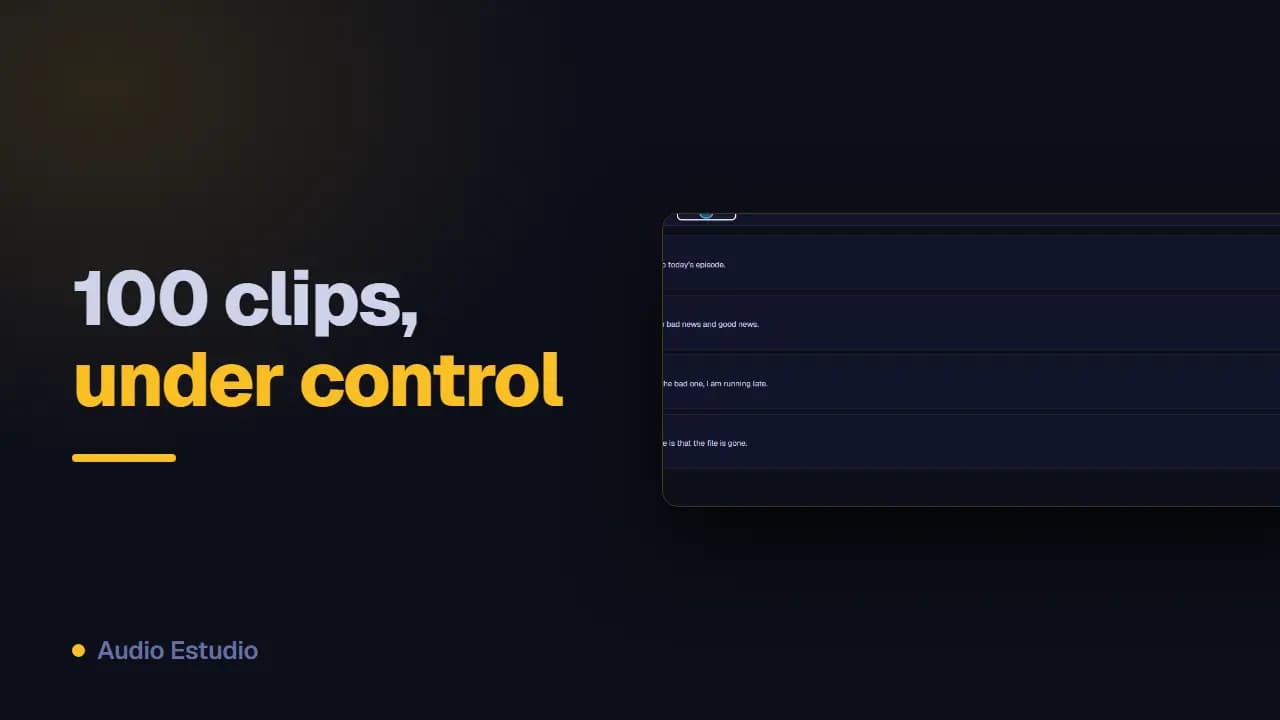
A clip is one line of the script: the text a character says and the audio generated for it. An episode is dozens of clips in an ordered list, so these are the everyday actions for writing them, ordering them and fixing them without getting lost.
Creating clips
Use “New clip” to add a line: pick the character (or create one on the spot), write the text and choose the position (at the end or after another clip).
Where a new clip lands
The “Position” selector offers “At the end”, which is the usual choice, or “After clip Nº 3” to slot it into the middle. There is no option to place it before the first one: create it after Nº 1 and drag it up. When you insert in the middle, the following clips renumber themselves and keep whatever audio they already had.
Reordering
Drag a clip by its handle to change the order. You can also move it with the keyboard once the handle is focused. The new order saves automatically.
It will not let me drag the clips
Dragging is disabled in two situations: while a batch generation is running and while a filter is active. Press “Clear filters”, or wait for the batch to finish, and the handle responds again. The counters on the right warn you that you are filtering: they say something like “12 of 30 clips” when you are not seeing them all.
Filtering
Filter the list by character or by status (generated or pending) to focus on what’s left. Use “Clear filters” to see them all again.
Editing the text without leaving the list
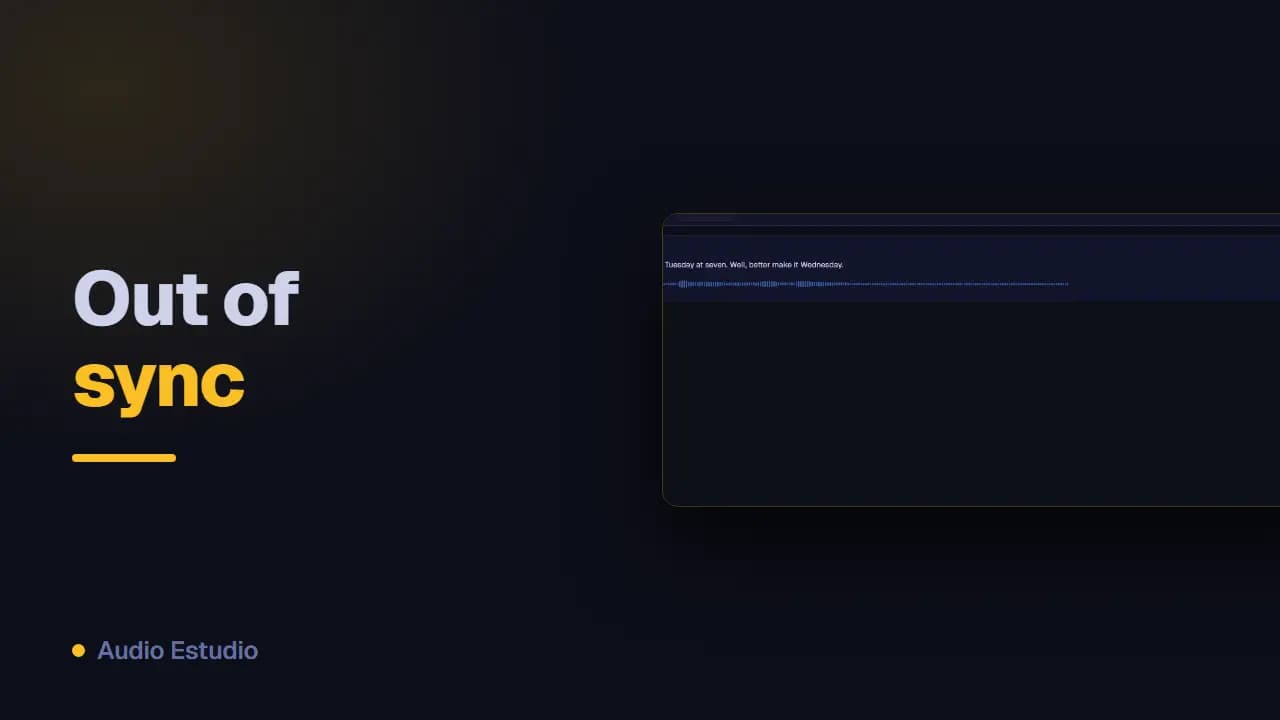
Click on a clip’s text, or press Enter or Space while it has the focus, and you edit it right there. Enter saves, Shift+Enter adds a line break and Escape cancels; clicking outside also saves. If the clip already had audio, saving will mark it as out of sync until you regenerate it.
“Out of sync” warning
If you edit the text of a clip that already had audio, the clip becomes “out of sync”: the audio no longer matches the current text. The warning icon opens a comparison of what changed, and the regenerate button rebuilds the audio with the current values in one click.
It went out of sync and I did not touch the text
The warning does not look at the text alone: it compares five values between the stored audio and the current clip, namely the text, the character, the provider, the voice and the voice description. That is why changing a character’s voice in “Project settings” marks all of its already generated clips at once. The comparison shows you, field by field, what it was generated with and what is there now.
Deleting
You can delete just a clip’s audio (keeping the text) or the whole clip. From the action bar you can also delete all the project’s audio at once.
The free plan generates audio with AI voices — no card, nothing to install.