Watch it instead
The same thing this page explains, shown on screen.
Where your audio lives: this browser or your own cloud
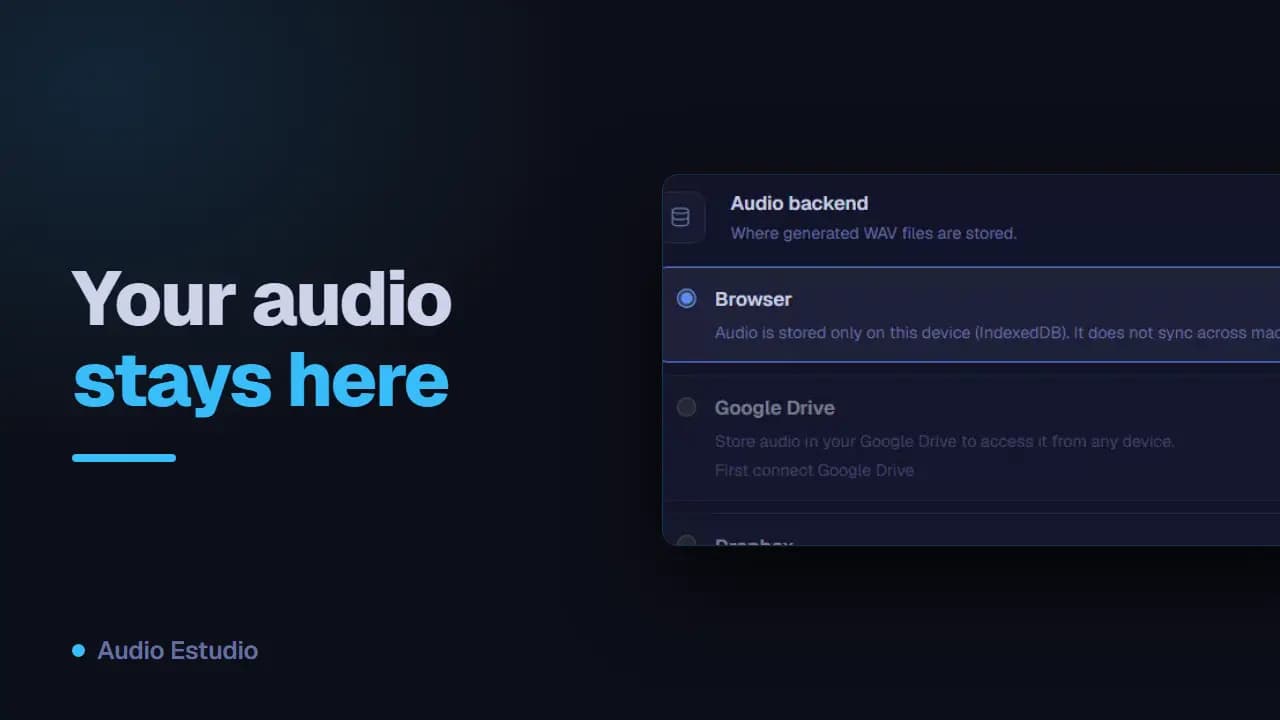
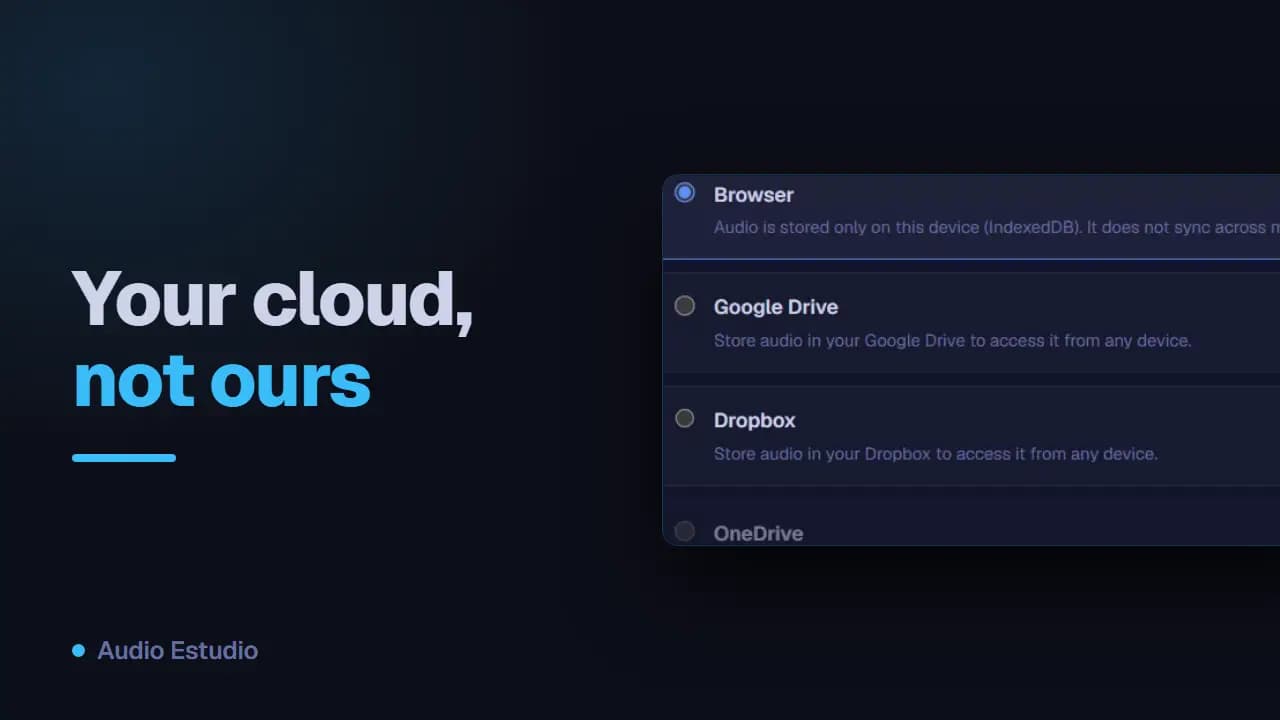
The audio you generate is stored, by default, only in this browser, in its local storage. If you want to keep it or open it from another computer, you can connect your own Google Drive, Dropbox or OneDrive account as the destination, a Pro plan feature. In no case does the audio pass through our servers.
Where the audio is stored
By default, audio lives only in this browser (IndexedDB). In Settings you can pick your own cloud as the destination: from then on, the audio you generate is uploaded automatically to your account.
Connecting your cloud
You can connect Google Drive, Dropbox or OneDrive through their secure sign-in (OAuth). The app only gets access to the files it creates itself, not to the rest of your account.
What gets synced
Only your clips' audio. Project metadata is handled separately and your API keys are never uploaded anywhere.
Getting your audio back on another device
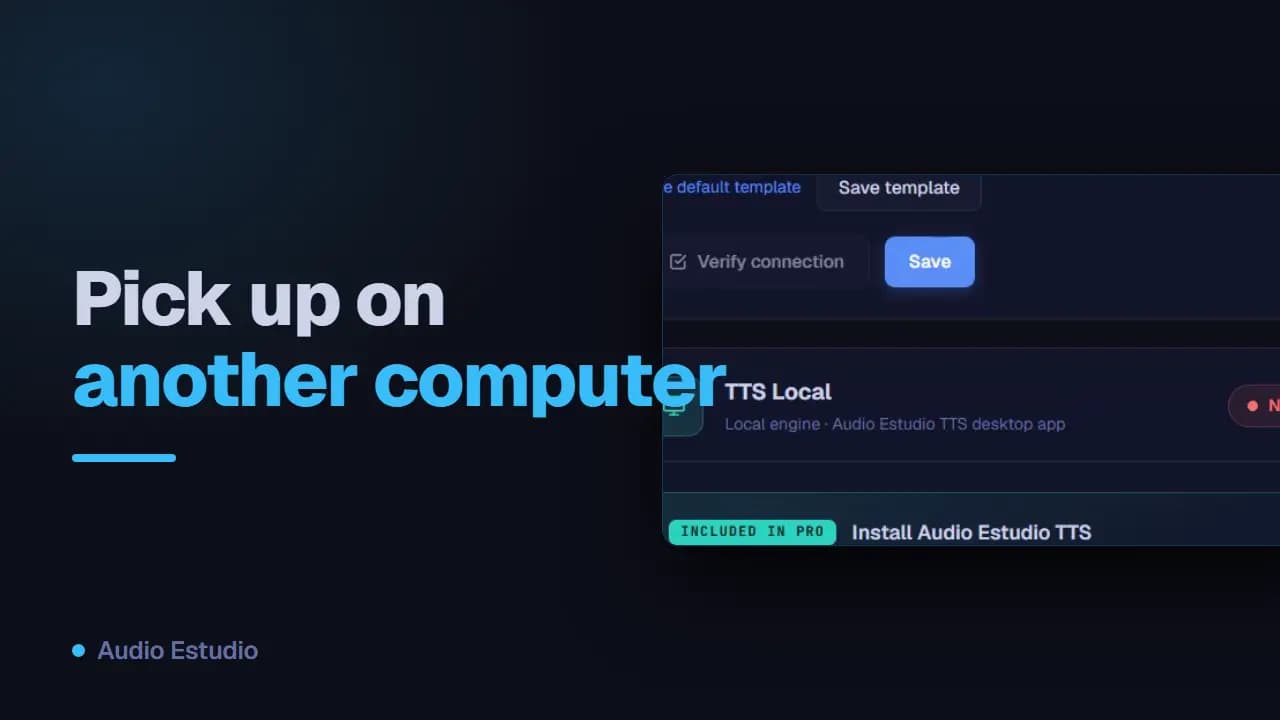
With your cloud connected, opening the project from another computer or browser downloads your audio on demand from your account; you don't have to regenerate it.
“Upload all” (bulk sync)
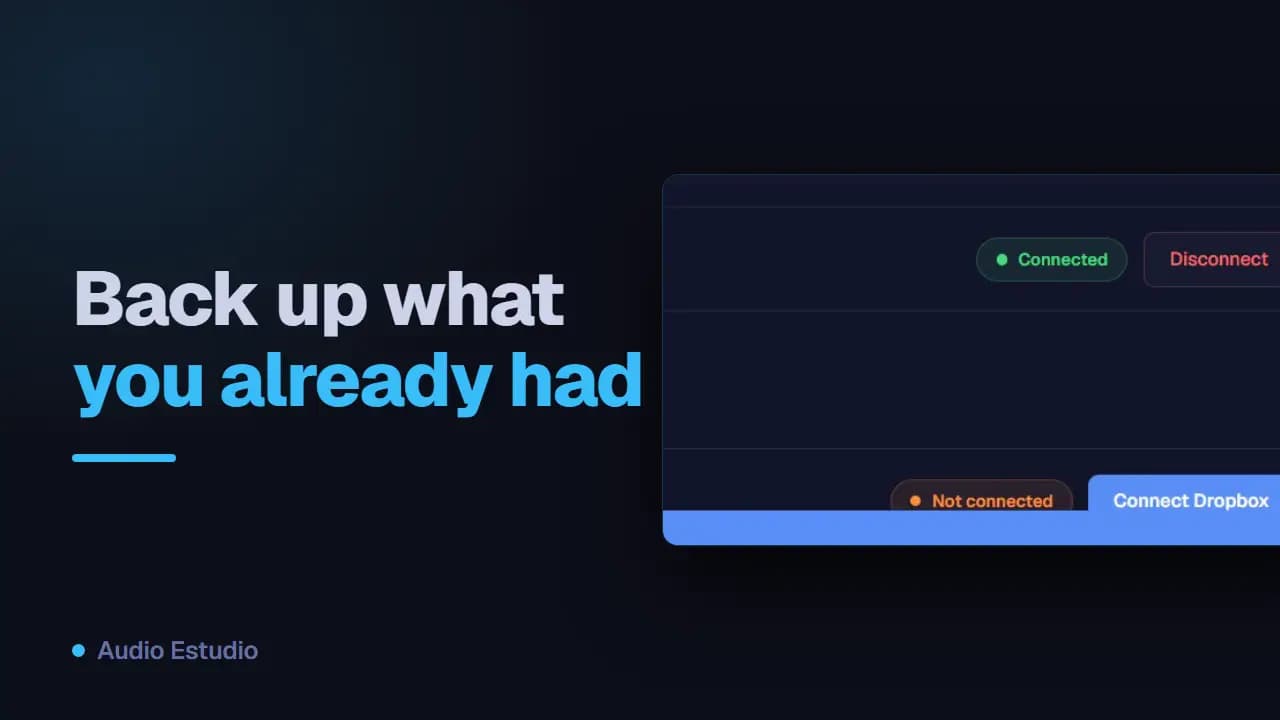
After connecting a cloud, “Upload all” syncs at once the audio that was still only in the browser, with an indicator of what’s uploaded and pending.
What the files look like in your cloud
In Google Drive the audio goes to a folder of its own that the app creates the first time you connect; in Dropbox and OneDrive, to the app folder that the service itself sets aside. Everything stays flat, with no subfolders per project, and each file is named after the internal identifier of the clip, with no extension and no readable name. It is not a folder to rummage through by hand: the way to get your audio back is to open the project in Audio Estudio.
What happens if you disconnect the cloud
Disconnecting deletes nothing: neither the files you already uploaded, nor the audio you have in this browser. Uploading simply stops. On Dropbox and OneDrive, disconnecting affects this device only. On Google Drive it also withdraws the permission you gave Audio Estudio in your Google account, so you will have to authorise it again on the other computers where you were using it. One case to bear in mind: if an audio existed only in the cloud and you disconnect, pressing play will show “This audio is in the cloud but its provider is not connected. Connect it in Settings to download it”.
The free plan generates audio with AI voices — no card, nothing to install.