Watch it instead
The same thing this page explains, shown on screen.
Desktop app (local engine)
Audio Estudio TTS is a Windows app that generates speech on your own computer. It powers the “Local” provider: no usage cost and no API keys. It requires the Pro plan.
What it is
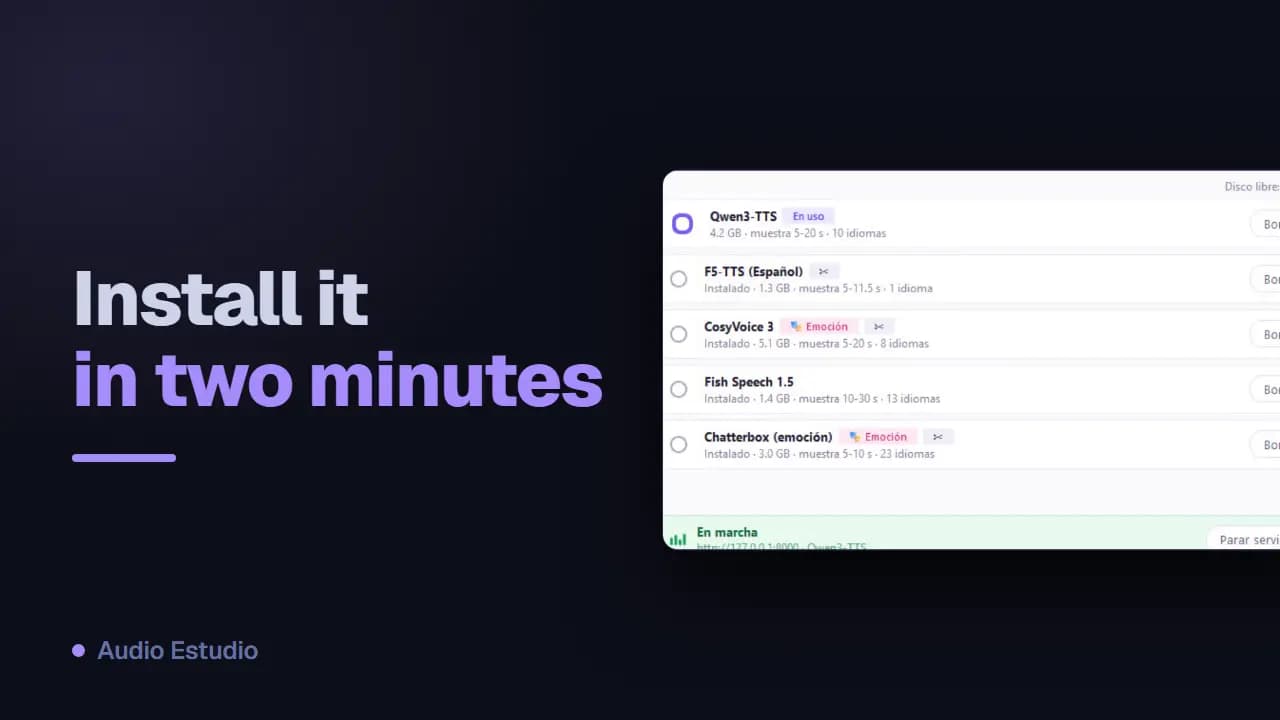
Instead of calling a cloud service, speech is synthesized on your machine with voice-cloning models. The app opens a small local server that Audio Estudio connects to in order to generate audio.
Download and install
Download the installer and open it. It installs for your user only, without administrator rights. When it finishes you'll find “Audio Estudio TTS” in the Start menu and the system tray.
Download the installerActivate this computer
The first time, the app will ask you to authorize this computer with your Audio Estudio account: a browser page opens to confirm it. You can view and revoke your computers under Settings → “Desktop TTS devices”.
What happens offline or without Pro
Every time the app contacts your account it receives an authorization valid for 30 days, so that you can keep generating offline within that window. If you stop being on the Pro plan, the local engine stops responding even though the app is still installed, and you will see the notice telling you that you need Pro.
Prepare a voice
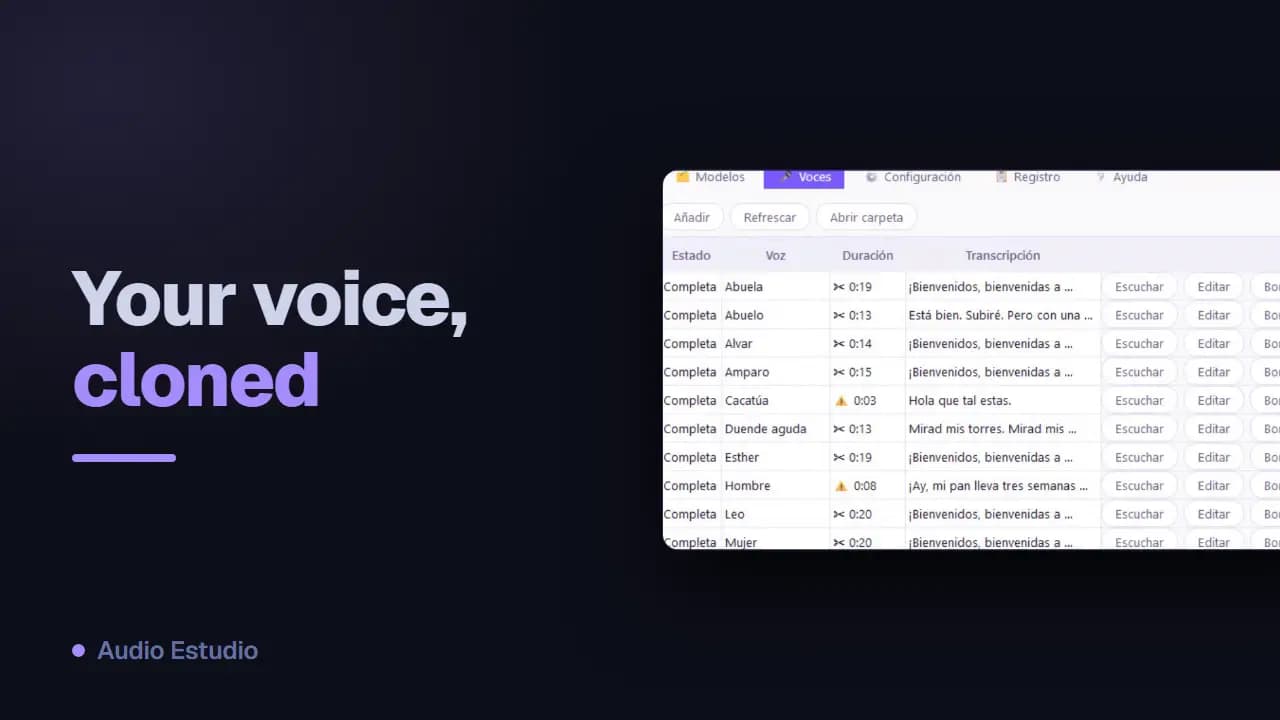
From the app itself you download a voice model and create your voices (cloning them from an audio sample). The step-by-step is in the help built into the desktop app.
Start the server
In the app, start the server. It will listen on http://127.0.0.1:8000. To check it works, open http://127.0.0.1:8000/health in your browser: it should respond “ok”. Keep the app open while you generate audio.
Connect it in Audio Estudio
In Audio Estudio, go to Settings → Providers → Local, type http://127.0.0.1:8000 in “Server URL” and click “Verify connection”. Then assign the local voice to your characters like with any other provider.
If something doesn't work
“It won't connect”: check that the desktop app is open and the server is running. “Error 402 / Pro required”: the local engine requires the Pro plan; activate it or sign in with the right account. “The port is busy”: change the port in the app's settings and use the same address in the Server URL.
The free plan generates audio with AI voices — no card, nothing to install.