Watch it instead
The same thing this page explains, shown on screen.
Notifications & activity
While you work, things happen in the background: calls to the voice engines, uploads to your cloud, audio imports. Audio Estudio tells you when something fails with a notification on the bell in the icon bar, and separately keeps a technical log of every call, which opens with “Logs” in the top bar.
Notifications panel
The bell at the end of the icon bar gets a red dot when there is something to look at and opens the notifications panel, with the time of each notice (for example, a cloud upload that failed). You can dismiss them one by one or clear them all.
Which notices you are going to see
In practice only errors are notified: a generation that fails, the cap of 60 requests per minute, a character with no voice assigned, a missing API key, an export that does not come out, an audio file that is too large, the browser storage being full, or a cloud upload that could not be completed. If everything goes well, the panel stays empty with “No notifications”.
They are wiped when you reload
Notifications live in the tab: reloading the page or closing it empties the list, and only the hundred most recent ones are kept. If an error matters to you, look at it in the technical logs, which are stored in your account.
Activity log
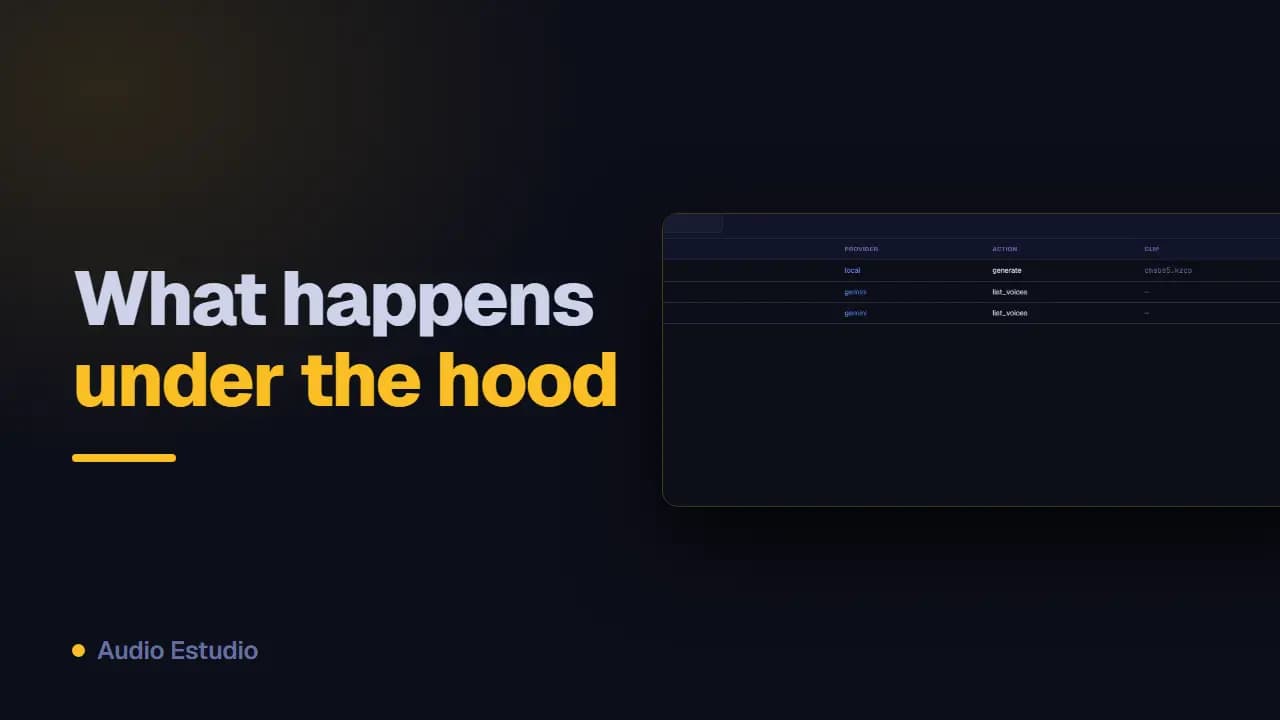
The activity log keeps recent calls and operations, with per-project filters, handy to understand an error or review a generation.
What the log stores and what it does not
Each row is a call to a voice engine, with its date and time, provider, action, clip, status and duration. Expanding it shows “Sent to provider” and, if it failed, “Recovered error”. The fifty most recent ones are shown and the only filter is by project. Of the request, only the text, the voice, the voice description, the language and the prompt template are stored: your API keys are never stored, and any token that showed up in an error message is replaced with [REDACTED].
Storage quota
Since audio is stored in the browser, when you go past 70% of the space it grants you, a warning strip appears under the top bar. It is informational: you can only dismiss it, and it does not tell you how much each project takes up.
How to free up space in the browser
To really get room back you have three routes: “Delete all” in a project’s action bar deletes its audio and keeps the texts, you can delete a whole project you no longer use, and from the timeline’s resources panel you can remove the external audios you imported. Uploading the audio to your cloud does not free up space: the local copy is kept so that you can carry on playing it without downloading anything.
The free plan generates audio with AI voices — no card, nothing to install.